

2FA – Enabling two-factor authentication and registering a token
Activation and Registration
Please note: The initial activation must take place on campus!
Students can also carry out the activation off-campus until 30th November 2026!
Registration
Go to the Selfcare Portal: https://selfcare.uni-due.de.
Log in using your main university ID and the corresponding password. If you have already enabled two-factor authentication, an additional field for entering the TOTP token will now be displayed.
In the portal, select ‘Security’ on the left-hand side, then ‘Two-factor authentication’.
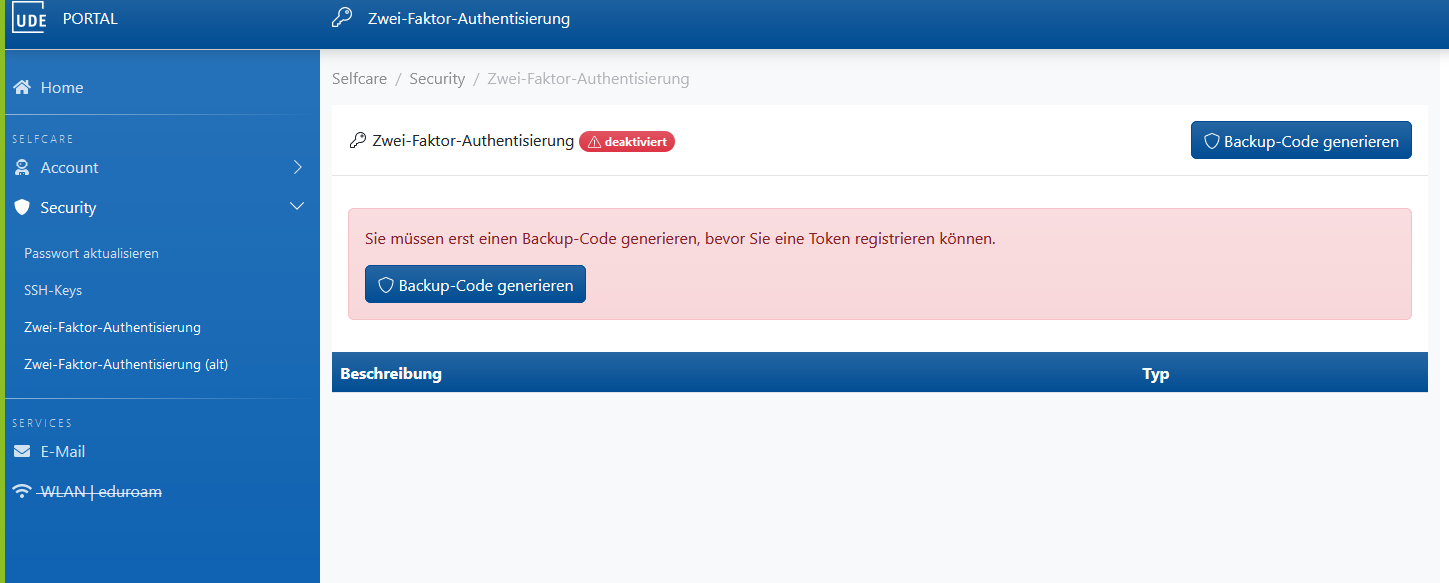
The following factors can be set up: a one-time password (time-based six-digit code), a passkey (secure against phishing) and a backup code.
Backup code
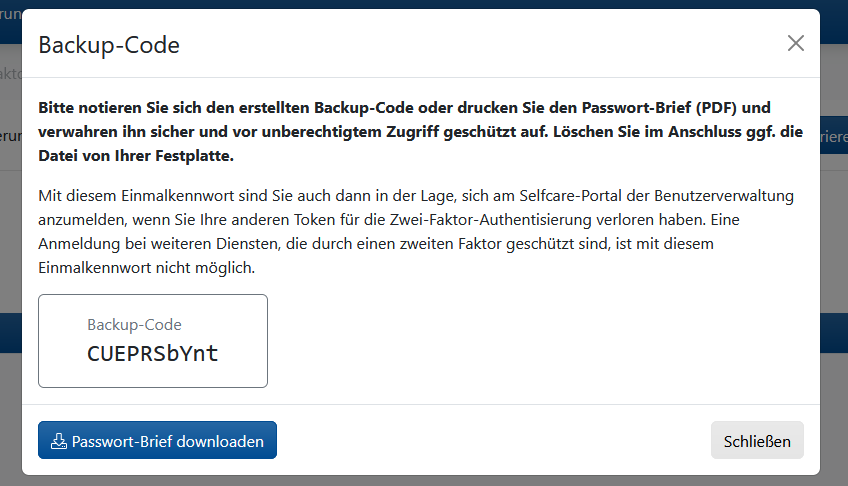
It is recommended that you create a backup code first. Click on ‘Generate backup code’

Make a note of the backup code or print out the downloadable PDF and keep the printout in a safe place. You may then delete the file from your hard drive if necessary.
Close the window containing the backup code.
A green icon indicates that the backup code has now been set up.
TOTP
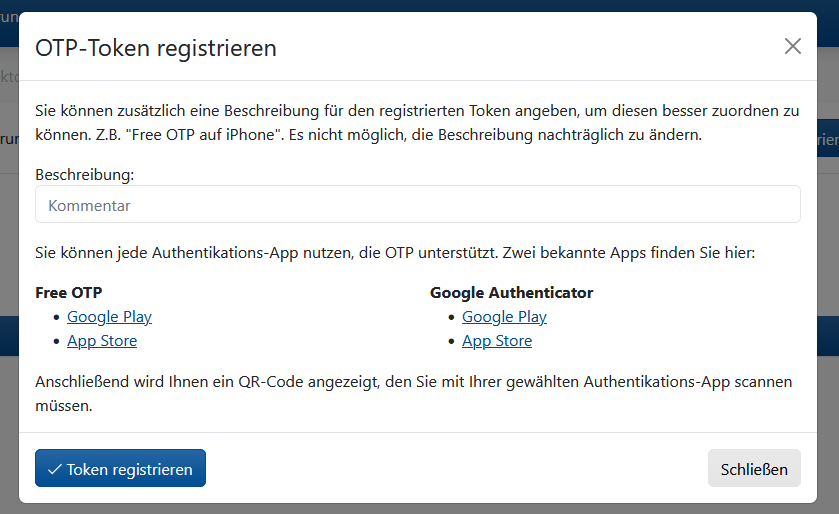
Now proceed to register a one-time password.
In the window that appears, please enter a suitable description and click on ‘Register token’. The comment is for your reference only, for example if you are registering several tokens.
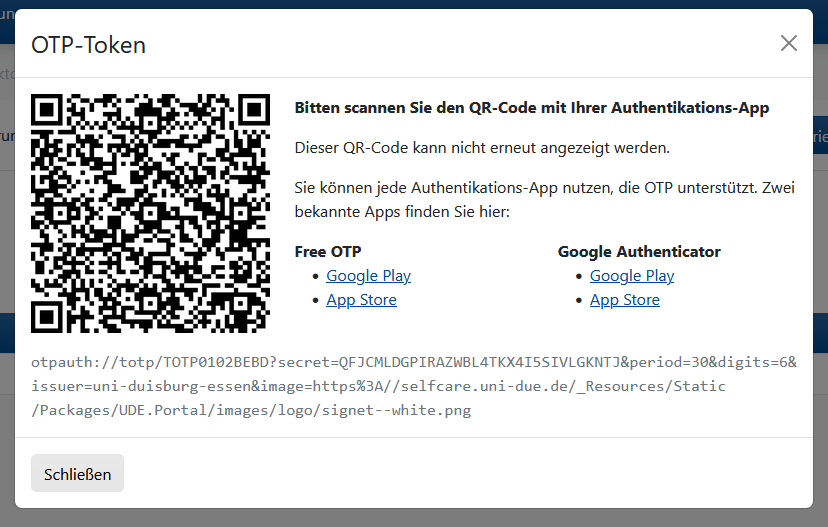
In the window that now appears, you will see a QR code, which you can scan using one of the apps mentioned above or a TOTP device, such as the REINER SCT Authenticator TAN generator.
To do this, open the Authenticator app, for example, tap the ‘+’ icon and select ‘Scan QR code’, then point your smartphone camera at the QR code shown. If the scan is successful, the entry with the current code will be displayed in the app.
If you are using Google Authenticator, open the app and enter the current code listed under ‘UDE’ into the input form.
Please note that the code changes every 30 seconds. It is also important that your smartphone is set to the correct time.
You can use the link below if your device cannot scan QR codes.
You must now enter a valid TOTP in the input field and activate it by clicking ‘Confirm token’.
Two-factor authentication is now enabled, and a second factor is required to log in to the Selfcare portal. Please note that when logging in, the token prompt will only appear once your password has been successfully verified.
You can currently register up to 5 apps or devices for generating TOTP tokens.
Passkey
Prerequisites:
- To register a passkey, please visit selfcare.uni-due.de using the device on which the passkey is to be registered.
- The device must support passkeys.
You can provide an optional description.

The following steps vary depending on your operating system. A system dialogue box should open and guide you through the process of setting up the passkey.
Testing and Deleting Tokens
Log in to the User Management Self-Service Portal: https://selfcare.uni-due.de
You will now need a second factor to do this.
In the portal, select ‘Security’ on the left-hand side, then ‘Two-factor authentication’.
Your registered tokens will now be displayed at the bottom of the page.
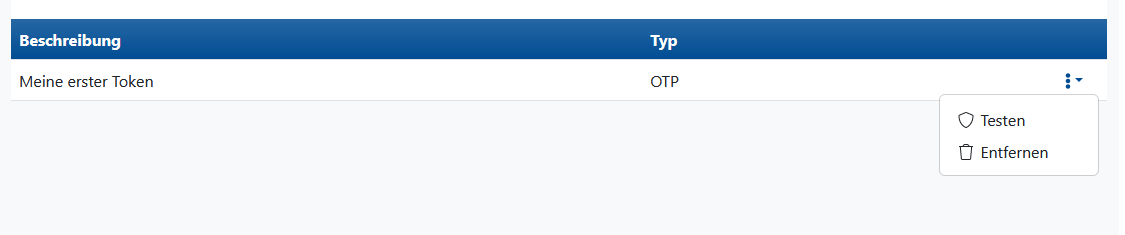
To verify a token, click on the three-dot menu next to the token and select ‘Test’. In the window that appears, enter the code currently displayed in your Authenticator app and click ‘Test’.
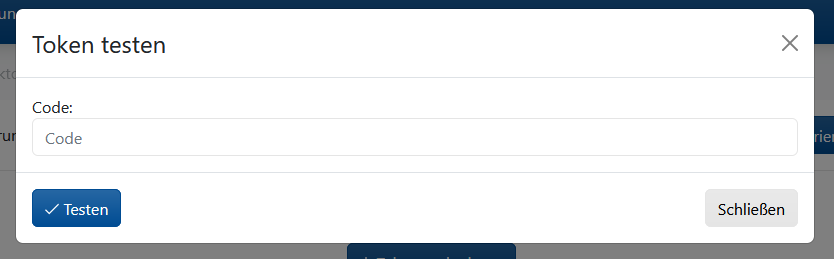
A notification will then appear showing the result of the check.
To delete a token, please click on the three-dot menu and select ‘Remove’. Confirm the security prompt by clicking ‘Remove’.